






Author: BharathKumarRaju DasaraRaju replied at 2024-07-29 06:19:15
I am confused what to do?
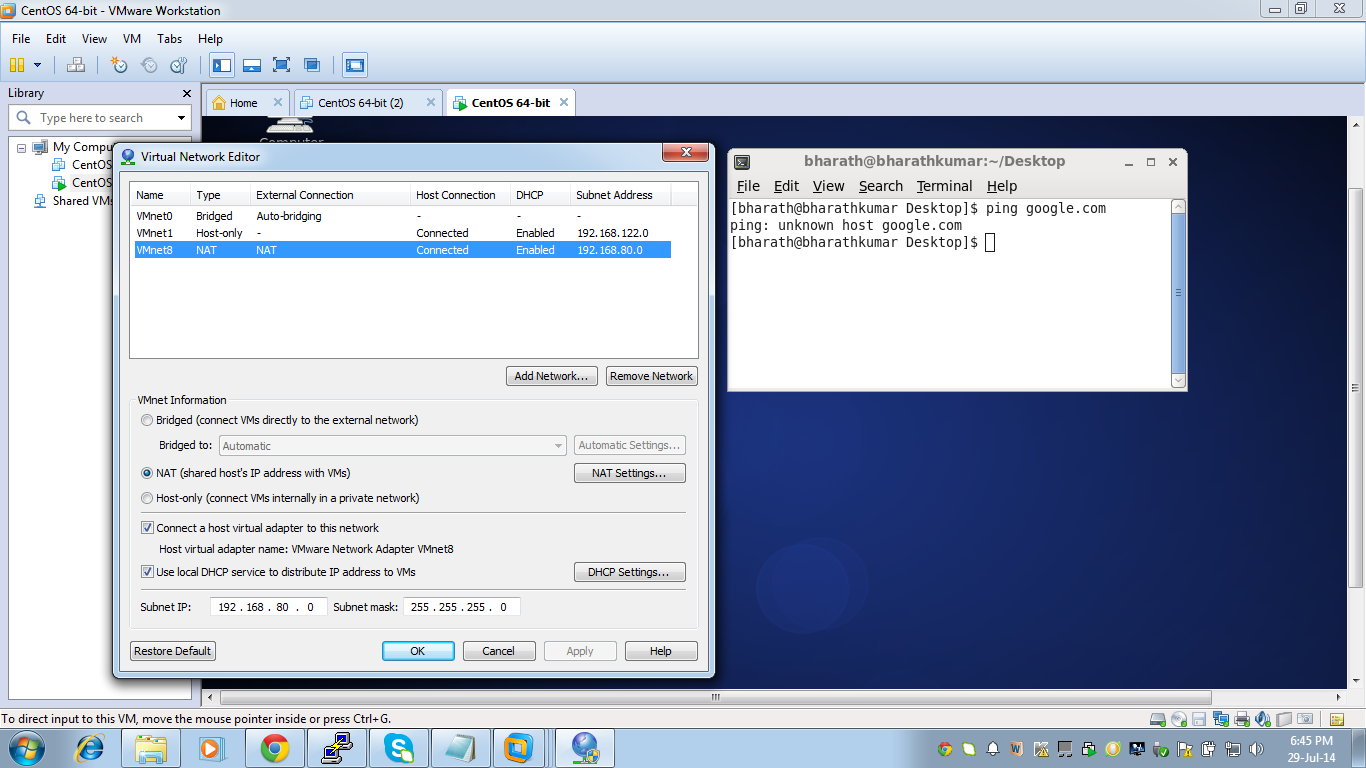
Please find below virtual network editor for vmnet1 and vmnet8
Please find below virtual network editor for vmnet1 and vmnet8
[root@bharathkumar ~]# ping -b 192.168.80.0
WARNING: pinging broadcast address
PING 192.168.80.0 (192.168.80.0) 56(84) bytes of data.
64 bytes from 192.168.80.2: icmp_seq=1 ttl=128 time=0.786 ms
64 bytes from 192.168.80.2: icmp_seq=2 ttl=128 time=0.448 ms
64 bytes from 192.168.80.2: icmp_seq=3 ttl=128 time=0.358 ms
64 bytes from 192.168.80.2: icmp_seq=4 ttl=128 time=0.364 ms
64 bytes from 192.168.80.2: icmp_seq=5 ttl=128 time=0.157 ms
^C
--- 192.168.80.0 ping statistics ---
5 packets transmitted, 5 received, 0% packet loss, time 4446ms
rtt min/avg/max/mdev = 0.157/0.422/0.786/0.206 ms
[root@bharathkumar ~]# ping -b 192.168.122.0
PING 192.168.122.0 (192.168.122.0) 56(84) bytes of data.
From 192.168.122.1 icmp_seq=3 Destination Host Unreachable
^C
--- 192.168.122.0 ping statistics ---
24 packets transmitted, 0 received, +1 errors, 100% packet loss, time 23213ms
[root@bharathkumar ~]#
Expert: Sandy replied at 2024-07-29 06:04:18
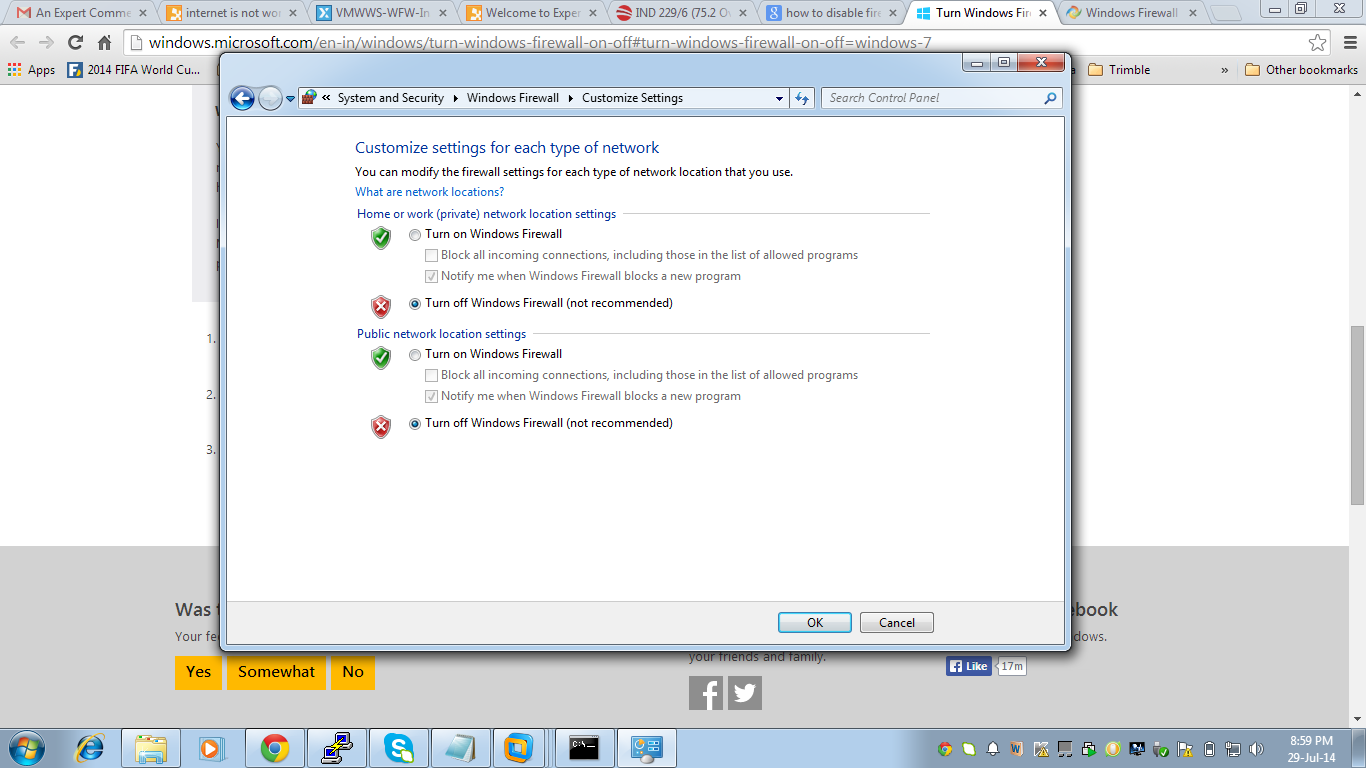
Why not disabling NetworkManager and just enable network service. Apart from this check network iptables rules and also see if you have windows firewall enabled which is blocking the traffic..
I doubt i have about firewall here is bcoz your system is able to resolve google.com to IP.. as per above output.
TY/SA
I doubt i have about firewall here is bcoz your system is able to resolve google.com to IP.. as per above output.
TY/SA
Expert: vivigatt replied at 2024-07-28 07:58:38
Can you ping 192.168.80.1 and/or 192.168.80.2 from your CentOS guest ?
These are the adresses of the Virtual NAT interface and the DHCP server.
Be careful, if you have changed the Virtual Networks configuration (for instance by bridging your NAT adapter to some other adapter) this could result in a messy configuration.
What I would do, if I was you:
- Make sure all your VM guests are shutdown
- Open VMWare Virtual Networks Editor
- Click "Restore Defaults"
- Check that your CentOS is using a a NAT'ed adapter
- Disable the host Firewall (Windows' or any firewall you have)
- Start the CentOS guest
- Make sure the CentOS guest is using DHCP
- try to ping 8.8.8.8
- if that works, enable the firewall again
- try to ping 8.8.8.8
- If that doesn't work anymore, the issue is with the Firewall !
These are the adresses of the Virtual NAT interface and the DHCP server.
Be careful, if you have changed the Virtual Networks configuration (for instance by bridging your NAT adapter to some other adapter) this could result in a messy configuration.
What I would do, if I was you:
- Make sure all your VM guests are shutdown
- Open VMWare Virtual Networks Editor
- Click "Restore Defaults"
- Check that your CentOS is using a a NAT'ed adapter
- Disable the host Firewall (Windows' or any firewall you have)
- Start the CentOS guest
- Make sure the CentOS guest is using DHCP
- try to ping 8.8.8.8
- if that works, enable the firewall again
- try to ping 8.8.8.8
- If that doesn't work anymore, the issue is with the Firewall !
Author: BharathKumarRaju DasaraRaju replied at 2024-07-27 06:11:35
NAT only
Expert: rindi replied at 2024-07-27 04:33:32
You at least got an IP now. How is the virtual adapter now set? NAT/Bridged/Host-only?
Expert: duncanb7 replied at 2024-07-27 04:08:19
Sorry , missing 100% loss
Duncan
Duncan
Author: BharathKumarRaju DasaraRaju replied at 2024-07-27 04:06:36
@duncanb7
Dear Sir,
When i changed the ip to dhcp form static ping is taking time and at last shown as 100% loss anyway
Dear Sir,
When i changed the ip to dhcp form static ping is taking time and at last shown as 100% loss anyway
Author: BharathKumarRaju DasaraRaju replied at 2024-07-27 04:05:30
[root@bharathkumar ~]# ifconfig -a
eth0 Link encap:Ethernet HWaddr 00:0C:29:2B:D2:FF
inet addr:192.168.80.130 Bcast:192.168.80.255 Mask:255.255.255.0
inet6 addr: fe80::20c:29ff:fe2b:d2ff/64 Scope:Link
UP BROADCAST RUNNING MULTICAST MTU:1500 Metric:1
RX packets:14644 errors:0 dropped:0 overruns:0 frame:0
TX packets:15371 errors:0 dropped:0 overruns:0 carrier:0
collisions:0 txqueuelen:1000
RX bytes:2501316 (2.3 MiB) TX bytes:2216701 (2.1 MiB)
lo Link encap:Local Loopback
inet addr:127.0.0.1 Mask:255.0.0.0
inet6 addr: ::1/128 Scope:Host
UP LOOPBACK RUNNING MTU:16436 Metric:1
RX packets:68 errors:0 dropped:0 overruns:0 frame:0
TX packets:68 errors:0 dropped:0 overruns:0 carrier:0
collisions:0 txqueuelen:0
RX bytes:10348 (10.1 KiB) TX bytes:10348 (10.1 KiB)
eth0 Link encap:Ethernet HWaddr 00:0C:29:2B:D2:FF
inet addr:192.168.80.130 Bcast:192.168.80.255 Mask:255.255.255.0
inet6 addr: fe80::20c:29ff:fe2b:d2ff/64 Scope:Link
UP BROADCAST RUNNING MULTICAST MTU:1500 Metric:1
RX packets:14644 errors:0 dropped:0 overruns:0 frame:0
TX packets:15371 errors:0 dropped:0 overruns:0 carrier:0
collisions:0 txqueuelen:1000
RX bytes:2501316 (2.3 MiB) TX bytes:2216701 (2.1 MiB)
lo Link encap:Local Loopback
inet addr:127.0.0.1 Mask:255.0.0.0
inet6 addr: ::1/128 Scope:Host
UP LOOPBACK RUNNING MTU:16436 Metric:1
RX packets:68 errors:0 dropped:0 overruns:0 frame:0
TX packets:68 errors:0 dropped:0 overruns:0 carrier:0
collisions:0 txqueuelen:0
RX bytes:10348 (10.1 KiB) TX bytes:10348 (10.1 KiB)
Expert: rindi replied at 2024-07-27 03:20:04
Do another ifconfig in your VM.
Expert: duncanb7 replied at 2024-07-27 03:15:55
why ping is working even it is slow but you say internet is not working inside VM ?
Could you define "NOT working" meaning ?
Duncan
Could you define "NOT working" meaning ?
Duncan
Author: BharathKumarRaju DasaraRaju replied at 2024-07-27 03:10:59
Hi rindi,
changed ti dhcp also but still internet is not working?
in fact ping is taking more time...as below..
[root@bharathkumar ~]# /etc/init.d/network restart
Shutting down interface eth0: Device state: 3 (disconnected)
[ OK ]
Shutting down loopback interface: [ OK ]
Bringing up loopback interface: [ OK ]
Bringing up interface eth0: Active connection state: activating
Active connection path: /org/freedesktop/NetworkManager/ActiveConnection/7
state: activated
Connection activated
[ OK ]
[root@bharathkumar ~]# ping google.com
PING google.com (74.125.130.139) 56(84) bytes of data.
^C
--- google.com ping statistics ---
7 packets transmitted, 0 received, 100% packet loss, time 6338ms
[root@bharathkumar ~]#
changed ti dhcp also but still internet is not working?
in fact ping is taking more time...as below..
[root@bharathkumar ~]# /etc/init.d/network restart
Shutting down interface eth0: Device state: 3 (disconnected)
[ OK ]
Shutting down loopback interface: [ OK ]
Bringing up loopback interface: [ OK ]
Bringing up interface eth0: Active connection state: activating
Active connection path: /org/freedesktop/NetworkManager/ActiveConnection/7
state: activated
Connection activated
[ OK ]
[root@bharathkumar ~]# ping google.com
PING google.com (74.125.130.139) 56(84) bytes of data.
^C
--- google.com ping statistics ---
7 packets transmitted, 0 received, 100% packet loss, time 6338ms
[root@bharathkumar ~]#
Author: BharathKumarRaju DasaraRaju replied at 2024-07-27 02:59:00
Hi rindi,
Thank you !!! i installed vmware tools .. but i am using static ip...let me change it to dhcp and check it again
Thank you !!! i installed vmware tools .. but i am using static ip...let me change it to dhcp and check it again
Assisted Solution
Expert: rindi replied at 2024-07-27 02:51:57
100 points EXCELLENT
You only need to use bridging when you want the Virtual Machine to be on the same network segment as your host machine. I usually want that, but there can be exceptions.
Have you installed the VMware tools in your CentOS VM? They are needed to give your VM better performance and proper access to the VMware's virtual device drivers. Also use DHCP and not static IP's, at least to start off with.
Have you installed the VMware tools in your CentOS VM? They are needed to give your VM better performance and proper access to the VMware's virtual device drivers. Also use DHCP and not static IP's, at least to start off with.
Expert: duncanb7 replied at 2024-07-27 02:50:12
No ping at all ?
Duncan
Duncan
Author: BharathKumarRaju DasaraRaju replied at 2024-07-27 02:48:55
Hi rindi,
I am sorry. here after i will use code snippet
I am sorry. here after i will use code snippet
Expert: rindi replied at 2024-07-27 02:45:35
I have moved your ipconfig output to a code snippet, that makes the Question easier to read. Please always when posting codes or logs or long outputs like that use the code snippet.
rindi,
EE Topic Advisor
rindi,
EE Topic Advisor
Author: BharathKumarRaju DasaraRaju replied at 2024-07-27 02:44:41
Many thanks all of you !!! it is my pleasure to interact with you !!!
Assisted Solution
Expert: duncanb7 replied at 2024-07-27 02:07:23
100 points EXCELLENT
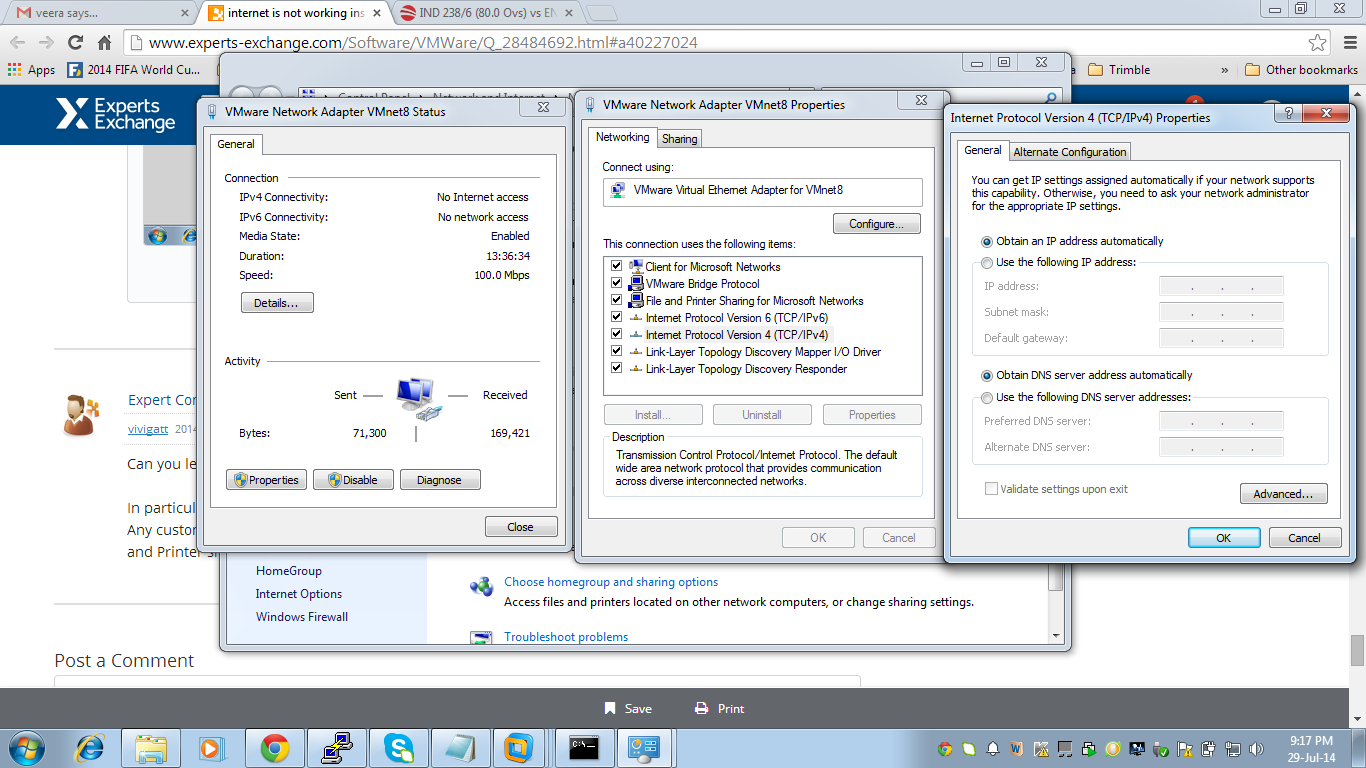
click the properties of Vmware network adapter vmnet8 and vmnet 1 at network sharing and select the bridge protocol and then go to there ipv4 addresses check ip addresses same as physical machine. View the image that is for the setup reference
Duncan
Duncan