





Ask Question Forum:
Model Library:2025-02-08:A.I. model is online auto reply
C
O
M
P
U
T
E
R
2
8
Show
#
ASK
RECENT
←
- Underline
- Bold
- Italic
- Indent
- Step
- Bullet
- Quote
- Cut
- Copy
- Paste
- Table
- Spelling
- Find & Replace
- Undo
- Redo
- Link
- Attach
- Clear
- Code
Below area will not be traslated by Google,you can input code or other languages
Hint:If find spelling error, You need to correct it,1 by 1 or ignore it (code area won't be checked).
X-position of the mouse cursor
Y-position of the mouse cursor
Y-position of the mouse cursor
Testcursor
caretPos
Attachment:===
Asked by brettr
at 2024-07-10 07:48:48
Point:500 Replies:3 POST_ID:828947USER_ID:10
Topic:
Microsoft Excel Spreadsheet Software;;
I have several cells in one column with data. If I highlight those cells, go to the formula menu and select the average function, it will put the calculated average below the cells (assuming I started below those cells).
However, if I'm to the right of those cells and do the same, the average function tries to average cells horizontally. In this case, there might not be any cells horizontally, except the one cell in the target column. Is there a way to make functions in the Formula tab drop downs calculate highlighted cells rather than some random set?
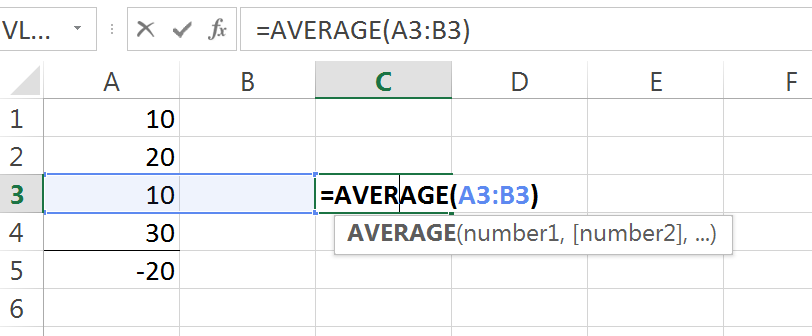
You can see in the cells below, even though I highlighted cells A1:A4 and selected Average from the AutoSum menu drop down, it then chose to average cells A3:B3.
However, if I'm to the right of those cells and do the same, the average function tries to average cells horizontally. In this case, there might not be any cells horizontally, except the one cell in the target column. Is there a way to make functions in the Formula tab drop downs calculate highlighted cells rather than some random set?
You can see in the cells below, even though I highlighted cells A1:A4 and selected Average from the AutoSum menu drop down, it then chose to average cells A3:B3.
Expert: duncanb7 replied at 2024-07-10 08:16:56
Thanks for your points
Have a nice day
Duncan
Have a nice day
Duncan
Expert: imnorie replied at 2024-07-10 08:09:55
Can't you just goto Formulas>Insert Function, pick the function and then use the dialog to select the cells you want to use in the function.
Or type the function in the cell and when you reach the ( press the fx button next to the formula bar.
If you do that you'll get the same dialog.
Or type the function in the cell and when you reach the ( press the fx button next to the formula bar.
If you do that you'll get the same dialog.
Accepted Solution
Expert: duncanb7 replied at 2024-07-10 08:06:13
500 points EXCELLENT
Step to Calculate an Average with the AutoSum Button
===========================================
1-Move cursor to cell C3.
2-Choose Home tab in Excel
3-Click the down arrow next to the AutoSum button .
4-Click Average.
5-Select cells A1 to A4.
6-Press Enter., and the average of cells A1 to A4 will show in Cell C3.
See the section in the link at Calculate an Average with the AutoSum Button
http://www.baycongroup.com/excel2007/03_excel.htm
Hope understand your question completely.If not, please point it out
Duncan
===========================================
1-Move cursor to cell C3.
2-Choose Home tab in Excel
3-Click the down arrow next to the AutoSum button .
4-Click Average.
5-Select cells A1 to A4.
6-Press Enter., and the average of cells A1 to A4 will show in Cell C3.
See the section in the link at Calculate an Average with the AutoSum Button
http://www.baycongroup.com/excel2007/03_excel.htm
Hope understand your question completely.If not, please point it out
Duncan